
1
Open any product photo
A white-background shot, a flat-lay, a lifestyle image, or your storefront. It works on Amazon, Etsy, Shopify, and your own site, no saving the file first.
A plain product shot scrolls right past shoppers. Right-click any photo and Pinterpost turns it into scroll-stopping pins, writes the SEO, and auto-publishes to Pinterest.
Start for $1 · Cancel anytime




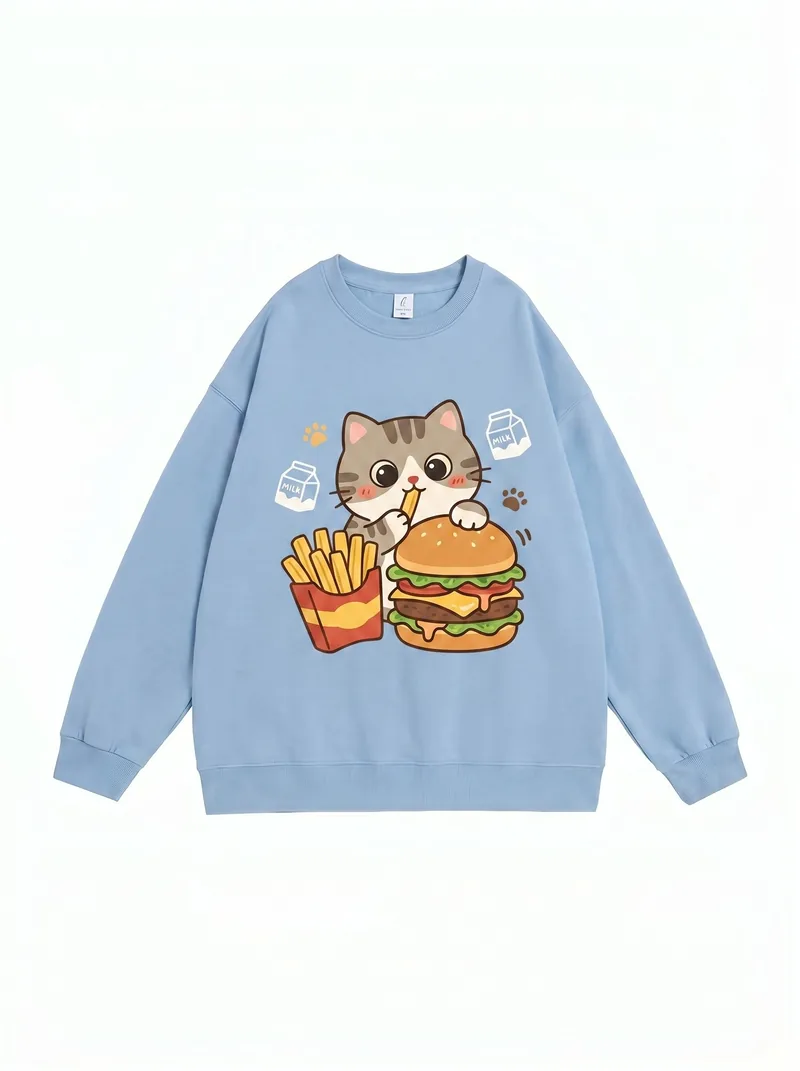
 Recreate with Pinterpost
Turning product photos into Pinterest pins means redesigning a plain catalog or studio shot into vertical, text-topped pins built for Pinterest search, instead of pinning the bare photo. Pinterpost is a Chrome extension that takes one product photo and generates up to 30 distinct pins, each with its own layout, title, and description, then auto-publishes them to your board. Your real product stays front and center while the design does the selling.
No studio, no designer, no export. Pinterpost builds the pins right in your Chrome sidebar on the product page you're already on.
A white-background shot, a flat-lay, a lifestyle image, or your storefront. It works on Amazon, Etsy, Shopify, and your own site, no saving the file first.
Hover the photo and click Recreate. Pinterpost pulls it in instantly, with no download, no upload, and no switching tabs.
Add a reference image or a Canva template and a short prompt. Match keeps your real product accurate while the design changes around it, so the pin is polished, not faked.
Pinterpost designs up to 30 distinct pins in under 60 seconds, writes a title and description for each, then publishes or schedules the batch to your Pinterest board.
Amazon, Etsy, Shopify, your own site, or a file from your computer. Right-click the photo and Pinterpost takes it from there.
Match mode holds your real item in frame and changes only the design around it, so shoppers see what they will actually get.
Every pin gets a keyword title, description, and alt text aimed at how shoppers search Pinterest, not a product name pasted on a photo.
One product photo becomes up to 30 distinct pins in under 60 seconds, different angles and layouts, not 30 copies.
Every pin comes out at the 2:3 ratio, 1000 by 1500 pixels, with readable title text, so nothing needs cropping after a catalog export.
Turn on auto-publish and Pinterpost posts the batch to your board for you, now or at a time you pick.
| The bare photo | With Pinterpost | |
|---|---|---|
| Look | Catalog flat | Vertical, text on top |
| Per product | One plain pin | Up to 30 designed pins |
| Found in search | No keywords | SEO written for each |
The shots you already have become finished pins, so you skip a styled shoot and a design tool just to show up on Pinterest.
Run it down your catalog and each item becomes its own batch of pins, so your whole store is searchable instead of just the hero products.
A bare product photo blends into the feed. A vertical pin with a clear hook and title is what stops a shopper mid-scroll.
Match mode keeps your actual item recognizable, so the pin that earns the click matches the product that arrives, no surprises.
Because every pin is written around real Pinterest search terms, your products show up for the things shoppers are actually looking for.
Turn on auto-publish and the batch posts to your board for you, so listing products on Pinterest stops being a manual chore.
You turn a product photo into a pin by placing the product in a vertical layout, adding a clear title, and sizing it to Pinterest's 2:3 ratio, then writing a keyword description so it can be found. Done by hand, that means a design tool and keyword research for every shot.
Pinterpost does it in one step. Right-click any product photo and it generates up to 30 designed pins, each with its own layout, title, and description, then publishes them to your board. The flat shot becomes a feed-ready pin without you opening an editor.
Rarely. A bare catalog photo is usually square or landscape, has no text, and carries no keywords, so it gets lost in a vertical feed built around search. Pinterest favors tall pins with a clear hook over a plain product cut-out.
Pinterpost closes that gap automatically. It reframes the product into a 2:3 pin, adds a readable title, and writes the search copy, so the same photo goes from invisible to feed-ready without a redesign on your end.
Three things: a vertical format that fills the feed, a clear product and value hook that survives a fast scroll, and a keyword title that matches what shoppers search. Miss any one and the pin gets scrolled past, even if the product is great.
Pinterpost builds all three into every pin. The product stays the focus, the layout is vertical and bold, and the title and description are written for Pinterest search, so each pin is made to be both seen and found.
More distinct angles on one product generally means more chances to rank, as long as each pin is genuinely different. A few varied designs per item tends to outperform a single pin, because each one can catch a different search and audience.
Pinterpost lets you generate up to 30 distinct pins from one product photo in a single pass. Publish the strongest few now and keep the rest in your gallery to schedule later, so one item gives you enough pins to fill weeks.
Yes, and they are some of the best starting points. A clean product cut-out gives the design plenty of room for a background, a title, and a hook, which is exactly what a strong pin needs. Lifestyle and flat-lay shots work just as well.
Pinterpost builds the pin design around whatever you give it, so a plain white-background photo becomes a styled, on-brand pin. You do not need a new shoot, just the photos you already use for your listings.
No, as long as the pins are distinct. Pinterest penalizes duplicate images and rapid bulk dumping, not promoting one product across several different pins. Varied designs for the same item are a normal, healthy way to grow.
Pinterpost keeps you on the safe side by making every pin a different design and description, so you avoid the duplicate signal, and because you choose when each batch publishes, you can space your pins out instead of posting them all at once.
The manual workflow is a chain: a photo editor for the design, keyword research for each title, a resize to 2:3, and a separate scheduler for the timing. Pinterpost folds all of it into one right-click on the product page.
| Step | By hand | Pinterpost |
|---|---|---|
| Design the pin | Lay out each one in an editor | Up to 30 generated at once |
| Write the SEO | Research and type each title | Written for you, per pin |
| Size for Pinterest | Crop and resize to 2:3 | Output at 1000x1500 automatically |
| Publish | Export, upload, set times elsewhere | Auto-published to your board |
| Where it runs | Several tabs and tools | The product page you're on |
Already have a Canva template for your pins? Drop it in as a reference and Pinterpost builds every product pin to match it, then writes the SEO and publishes the batch for you.
About a minute. Install Pinterpost, connect Pinterest in one tap, then right-click any product photo. Your first batch of up to 30 designed pins is ready in under 60 seconds.
Yes. Match mode keeps your real product front and center and changes the design around it, so the pin looks polished without turning your item into something it is not.
No. A clear phone photo, a white-background shot, or a flat-lay all work. Pinterpost builds the pin design around the photo, so you do not need studio lighting to get scroll-stopping pins.
Yes. Add a reference image, a Pinterest board style, or a Canva template and Pinterpost matches every pin to your fonts, colors, and layout, so the pins look like your store.
Try everything for $1 over 3 days, which includes 10 pins. After that, plans start at $29/mo for 50 pins on the Starter plan. Cancel anytime during the trial.
Right-click any product photo. Generate 30 designed pins. Auto-publish the batch and let shoppers find you.
$1 to start · Cancel anytime · Works on Chrome, Edge, Brave